How to Automate Instagram DMs After Comments (Step-by-Step)
Instagram has changed. The days of "link in bio" are slowly dying, replaced by a much more engaging, high-conversion strategy: Instagram comment automation.
By asking your followers to comment a specific keyword (like "GUIDE" or "LINK"), and automatically sending them a DM with the resource, you can dynamically increase your engagement, with DM open rates frequently exceeding 70%—far outperforming traditional email marketing.
But how do you actually set this up? In this step-by-step guide, we'll show you exactly how to automate Instagram DMs after comments using DMflow.live.
Table of Contents
- Why You Need Instagram Comment Automation
- Step 1: Connect Your Instagram Account
- Step 2: Create a New Automation
- Step 3: Set Your Trigger
- Step 4: Build Message Content
- Step 5: Save Draft & Activate
Why You Need Instagram Comment Automation
Before we jump into the setup, why is this strategy so effective?
- Algorithm Boost: Instagram's algorithm loves comments. When people comment on your post to get a link, the algorithm sees high engagement and pushes your content to more users.
- Reduced Friction: "Link in bio" requires users to leave the post, go to your profile, find the link, and click. DM automation delivers the link directly to their inbox instantly.
- Conversational Commerce: Sending a DM opens a one-on-one conversation channel, making it easier to follow up and build relationships.
- Safety & Policy: Because the user initiates the interaction by commenting, this is a fully sanctioned method that complies with Meta's guidelines. (Read more in our guide on Is Instagram DM Automation Safe?).
Step 1: Connect Your Instagram Account
To get started, you'll need an Instagram Business or Creator account connected to a Facebook Page.
- Create a free account on DMflow.live.
- On your dashboard, click Connect Instagram.
- You'll be redirected to Meta's secure OAuth flow. Follow the prompts to grant DMflow.live the necessary permissions to read comments and send messages.
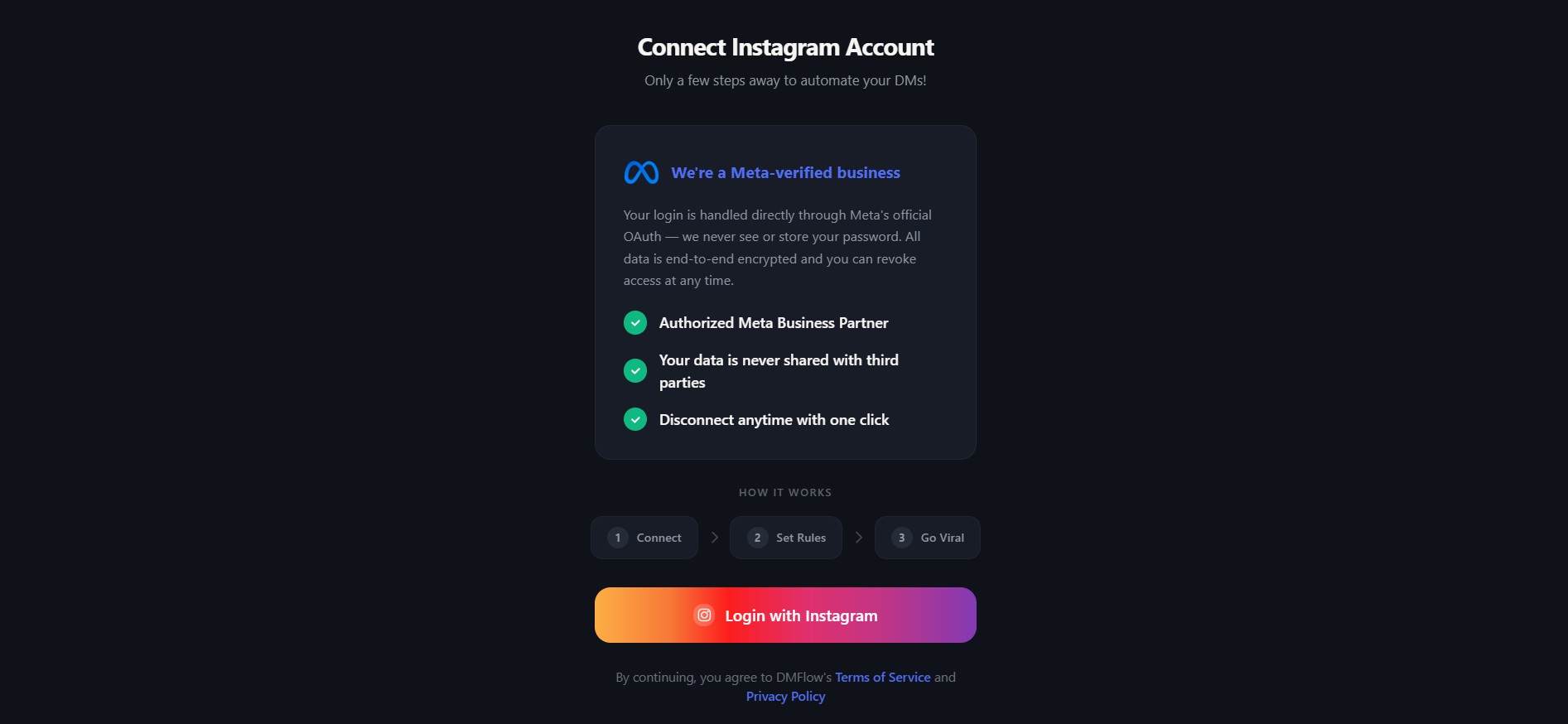
Note: You never have to give us your Instagram password. We use Meta's official Graph API, ensuring your account remains perfectly safe and compliant.
Step 2: Create a New Automation
Once your account is connected, it's time to build your first automation.
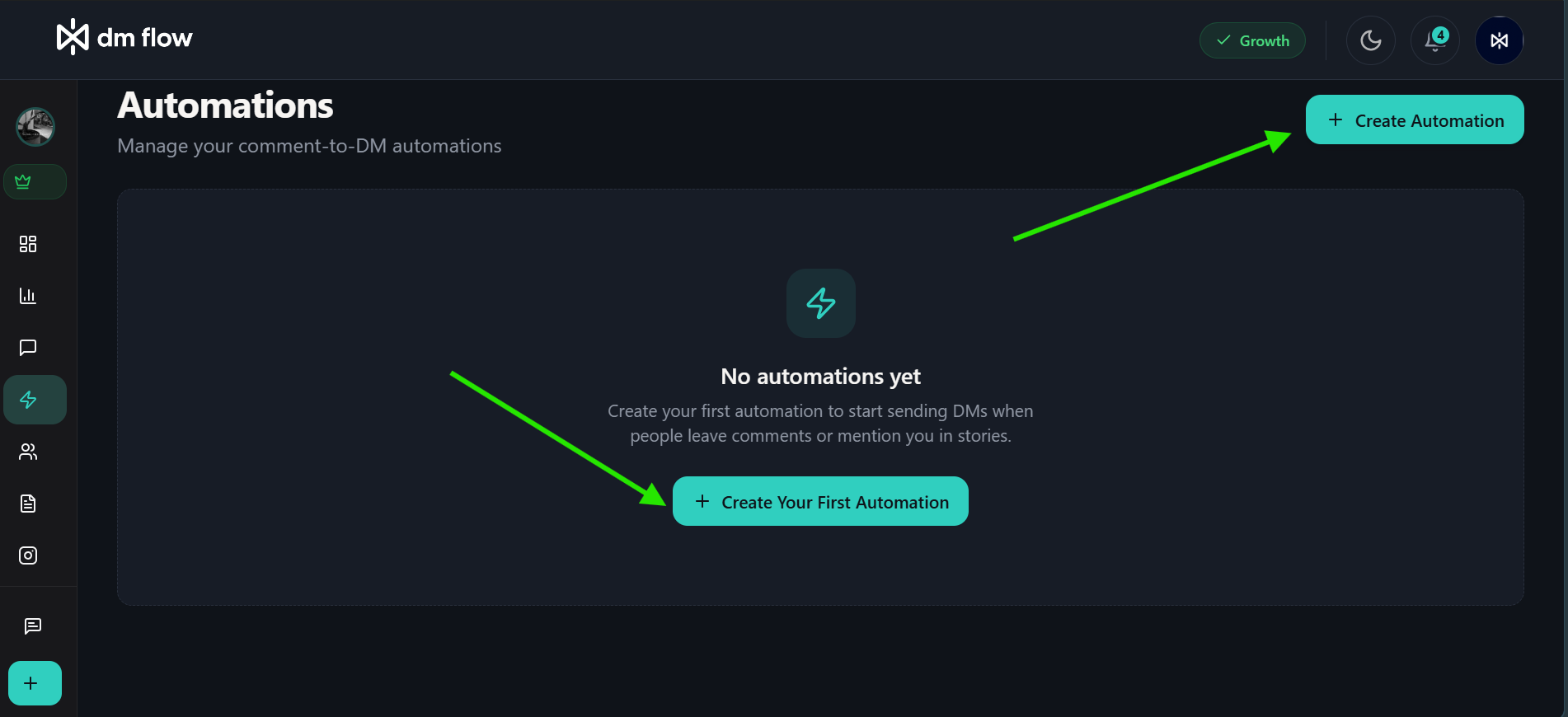
- Navigate to the Automations tab in your dashboard.
- Click Create Automation.
- A draft is created automatically. Click the Untitled Automation title or the pencil icon at the top of the builder to give your automation a recognizable name, like "Spring Launch Giveaway".
Step 3: Set Your Trigger
The trigger is what tells DMflow.live to send the message.
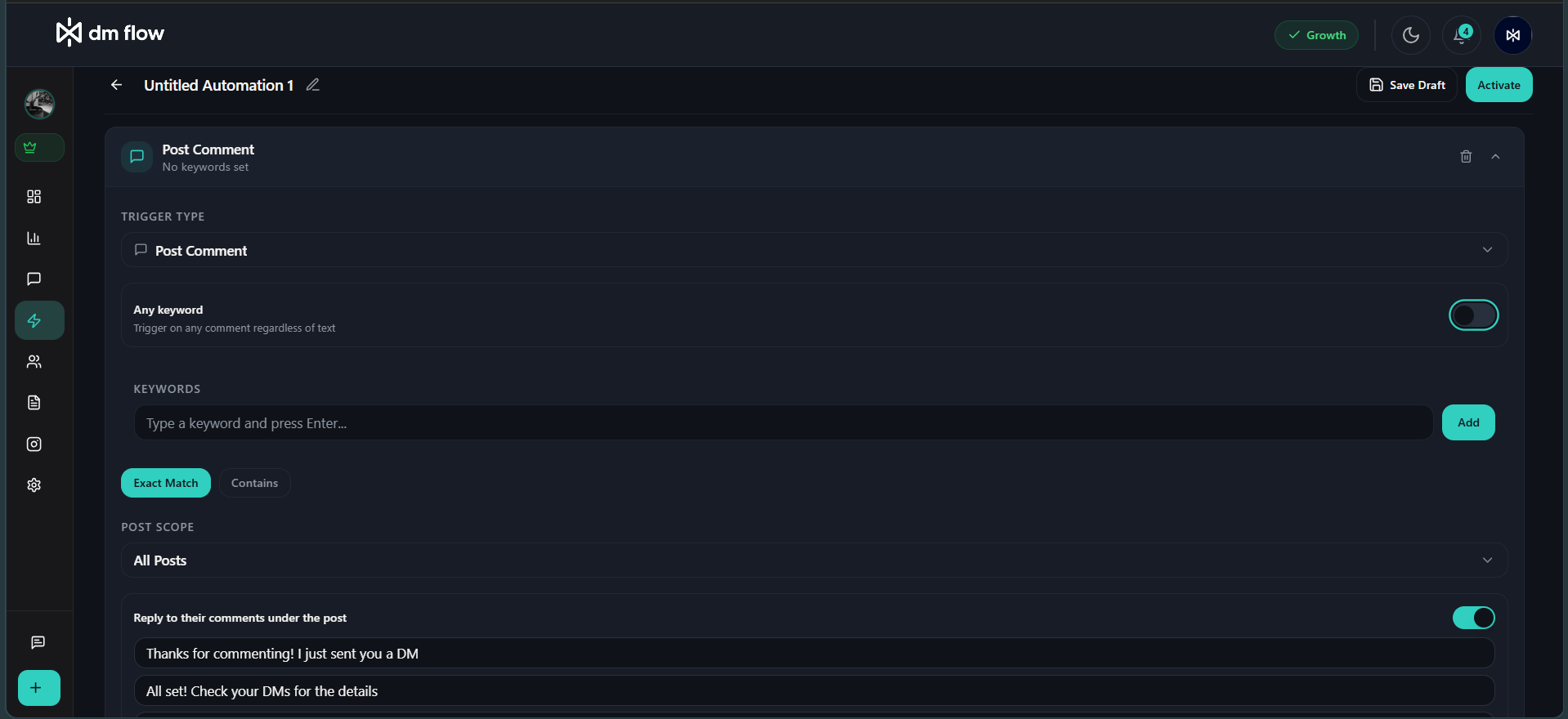
- In the Trigger Type section, select your trigger: Post Comment, Live Comment, Story Mention, Story Reply, or DM Received.
- If relying on comments, choose your Post Scope: All Posts, Reels Only, Specific Post, or Next post or reel.
- Use the toggle for Any keyword to trigger on any comment, or add specific Keywords (e.g.,
EBOOK,GUIDE). - Select your Match Type: "Exact Match" or "Contains".
- (Optional) Turn on Reply to their comments to automatically leave a public reply like "Sent you a DM!" directly beneath their comment.
Step 4: Build Message Content
This is the customizable DM the user will receive immediately after commenting.
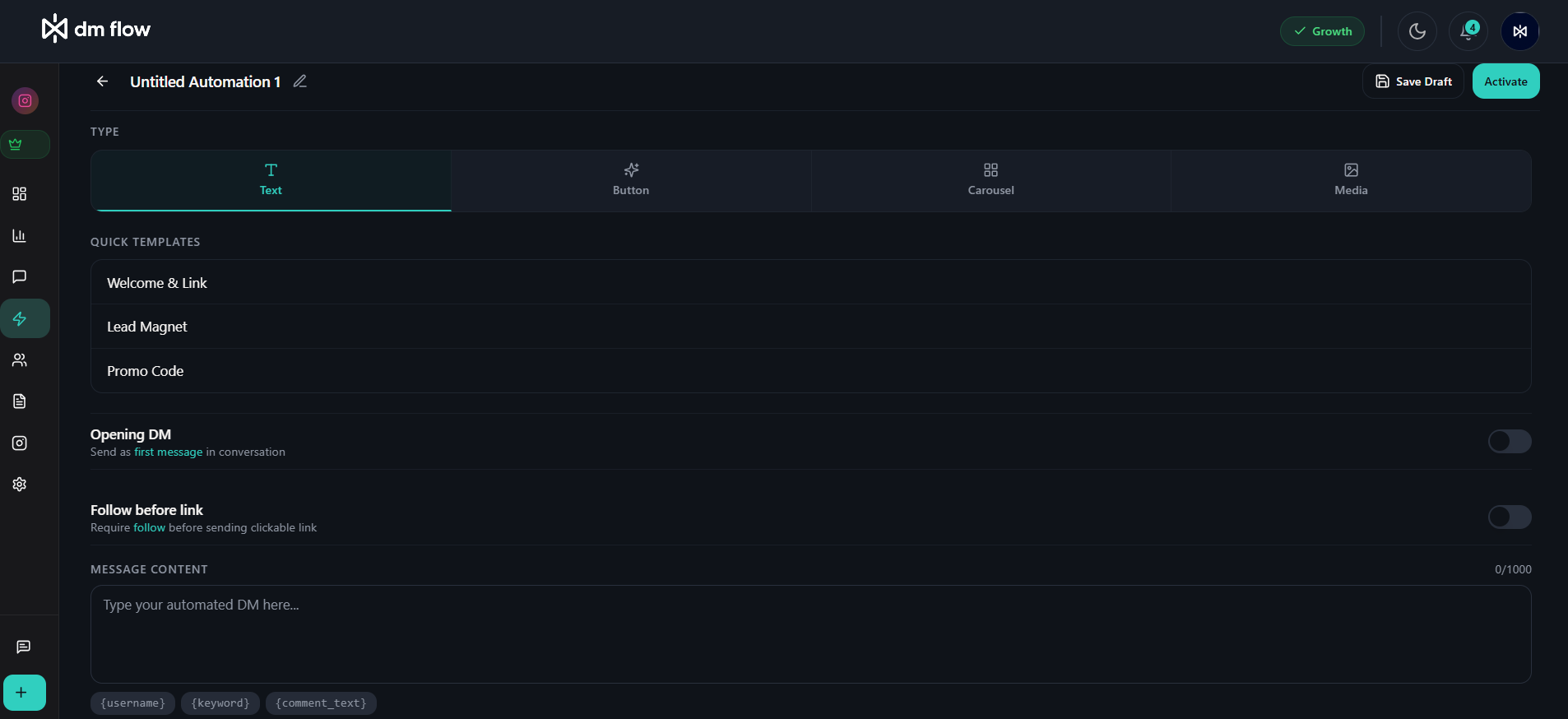
- Scroll down to the message builder and select your Type: Text, Button, Carousel, or Media.
- (Optional) Use a Quick Template like "Welcome & Link" or "Lead Magnet" to get started instantly.
- Draft your response in the Message Content box. You can use dynamic variables like
{username}to automatically insert the follower's name. - Enhance your strategy by toggling on Follow before link (require a follow to get the link) or an Opening DM message to ensure engagement.
- If using buttons or carousels, configure the URLs or actions for the CTA buttons.
Step 5: Save Draft & Activate
Before your automation starts working, you need to turn it on.
- At the top of the screen, click Save Draft to ensure your work is tracked. (Note: Media uploads require your draft to be saved first).
- Click Activate in the top bar. If any required fields (like choosing an Instagram account or typing a message) are missing, the builder will automatically highlight them for you to fix.
- If everything looks good, it goes live immediately!
- Jump onto your connected Instagram account and test the keyword yourself to guarantee it's firing properly.
Conclusion
Automating your Instagram DMs from comments is the fastest way to turn scrollers into leads. It takes just 10 minutes to set up, but the impact is profound—creators regularly see a 5x to 10x lift in engagement and reliably capture leads at the peak of their interest.
Ready to see the difference for yourself? Start your free trial on DMflow.live →
Still weighing your options? You can compare our features in our detailed breakdown of DMflow.live vs ManyChat to understand why creators choose us.
Frequently Asked Questions
Will automating DMs get my account banned or restricted?
No, as long as you use a verified tool. DMflow.live uses Meta's official Graph API, which means it is 100% compliant with Instagram's terms of service. Because the user initiates the conversation by commenting on your post, you are fully authorized by Instagram to send them a DM response securely.
Is there a daily limit on how many automated DMs I can send?
Instagram does have rate limits to prevent spam, but comment-triggered DMs have exceptionally high allowances because they are considered "requested" messages by the end-user. As long as you aren't sending thousands of unsolicited outbound DMs, your automated comment replies will scale safely with your viral content.
Can I use this for Instagram Stories as well as posts?
Yes! DMflow.live's triggers can be configured to automatically send a DM when someone replies to your Instagram Story or specifically mentions your account in their own Story.
Do I need a paid tool to automate Instagram DMs?
While Instagram provides simple "saved replies" natively, automated keyword-based triggers require a third-party tool like DMflow.live, which uses Meta's official API to securely automate responses.
Does this work for Instagram Reels as well as regular posts?
Yes! DMflow.live can trigger DMs from comments on standard image posts, carousels, and Instagram Reels. In fact, Reels often generate the highest volume of comment-driven leads.
How long does it take for the automated DM to send?
When properly configured, DMflow.live sends the automated DM within seconds of the user dropping their comment. This instant gratification drastically improves conversion rates.
Ready to Automate Your Instagram DMs?
Start converting comments into customers with DMflow.live — free to try, no credit card required.
Get Started Free →